
How to Customize Any Website in Chrome (No Code)
You can customize any website in Chrome with an extension that changes the page in your own browser and remembers it per site. With Pagic you click an element to hide it, drag a color pad to recolor the page, turn on dark mode, pick a font, and add highlights and sticky notes, all without code. The site stays the same for everyone else. This guide covers every kind of change, and how to keep each one.
What does "customizing a website" actually mean?
Customizing a website means changing how it looks and reads for you, without touching the site itself. Your browser downloads the page, and an extension adjusts it before you see it: some parts hidden, some colors changed, a different font, your own notes on top.
Nobody else sees it. The site's owner doesn't know. And the important part: a good tool saves your changes per site and puts them back every time you visit, so you do it once.
People have done this for years with user styles (CSS files you write yourself) and ad blocker element pickers. Arc made it mainstream with Boosts, a small panel per site. Arc is shutting down on December 22, 2026, which is one reason I wrote this guide. If that's you, start with the Arc Boosts alternative guide.
The six kinds of changes (and when you want each)
| Change | What it fixes | In Pagic |
|---|---|---|
| Hide | Ads, pop-ups, feeds, sidebars, Shorts, cookie banners | Edit page → click → Hide |
| Colors | Glaring white pages, ugly themes, sites without dark mode | Color pad, the moon |
| Text | Tiny text, hard-to-read fonts, cramped lines | Aa: font, spacing, width |
| Rearrange | The thing you need is at the bottom | Edit page → Move, Resize |
| Mark up | You want to remember why you saved this page | Markup: highlighter, notes, pen |
| Read | You just want the article | Reader |
1. Hide anything on a page
Hiding is the change people make first. Open Edit page, click the thing you don't want, and choose Hide. Pagic picks the smallest meaningful thing under your pointer (a post, a sidebar, a banner), not a random invisible box, and the page closes the gap it left.
Two tricks make it stick on busy sites:
- Hide all like this hides every matching item, including ones the site loads later. It's how you get rid of every promoted post in a feed, not just the first.
- Drag across the page in Hide mode to pick several things at once, then press Enter.
I wrote step-by-step guides for the most common ones: YouTube Shorts, the LinkedIn feed, and any element on any site.
2. Change a website's colors or add dark mode
The color pad has two dots. Drag the big one to tint the page (whites become a pale shade of your color, blacks a deep one), and the small one to change the site's accent color. Pagic finds the site's own accent, like YouTube's red, and turns it into yours.
The moon turns on dark mode, even on sites that never had one. Click it again for Auto, which follows your system: dark at night, light in the day. Photos and videos keep their real colors either way, which is the part most dark mode tools get wrong. More in how to get dark mode on any website.
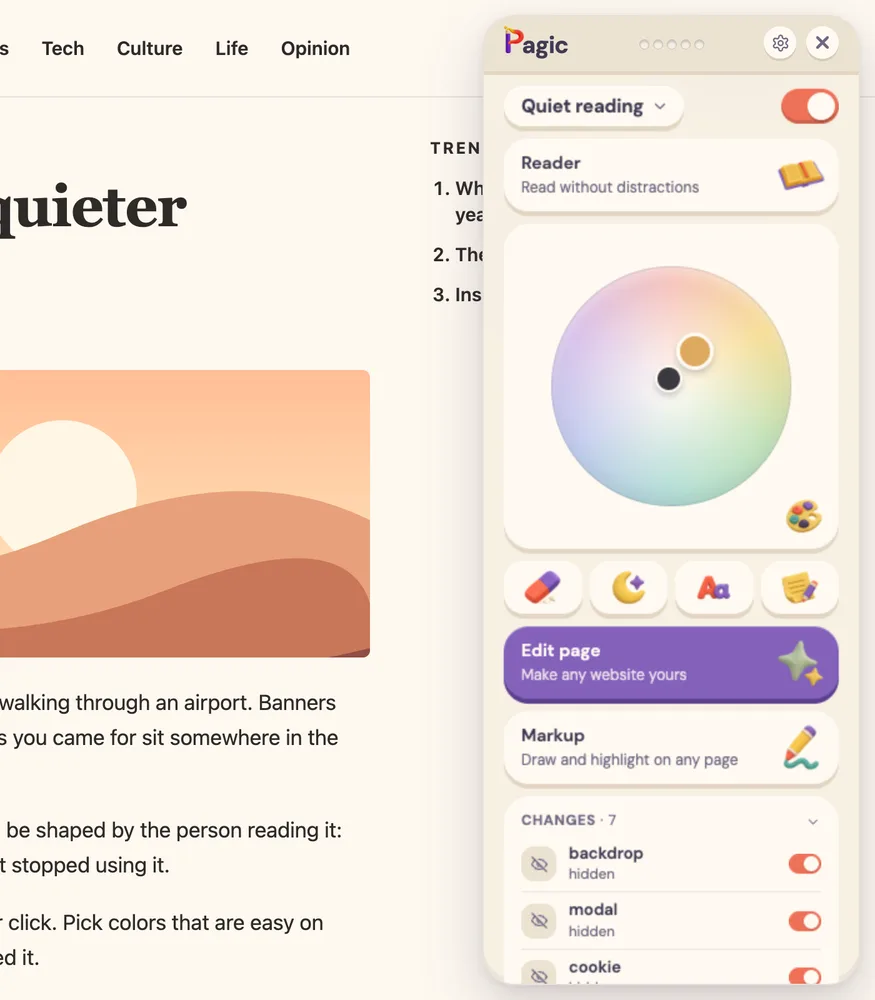
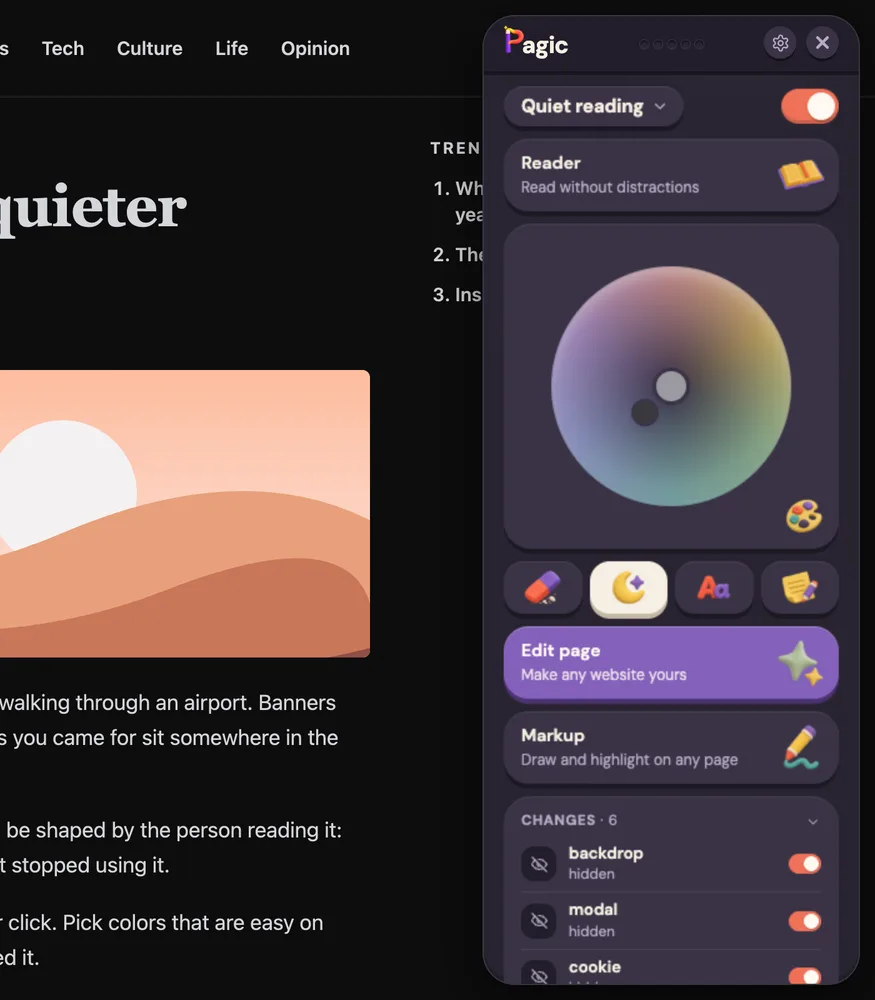
For precise work, Colors on the Edit page lists every color the page uses. Click one and change it everywhere it appears: text, backgrounds, borders and icons.
3. Change the font, size and spacing
Click Aa. You get four quick picks and a list of every font installed on your computer, each shown in its own typeface. You can add a font from a file too, including OpenDyslexic. Under the fonts, sliders change line spacing, letter spacing, paragraph spacing and text width for the running text, while buttons and menus keep their own look.
4. Move, resize and restyle things
On the Edit page, Move lets you drag a widget up a sidebar or a link along a menu, and Size lets you make a small search box bigger. Style adds text and fill colors, a ring, rounded corners, greyscale, dim, or blur. Blur has a handy mode: Blur until hover, which keeps spoilers and comments blurred until you point at them.
You can also edit any text on the page (click it, type, Enter), or replace a picture, a logo for example, with one of your own.
5. Highlight, draw and leave notes
Markup puts a highlighter, underlines, a black marker, a pen, arrows, shapes and sticky notes on any page. The part that matters: they stay. A highlight belongs to its words, so it's still there when the page reloads or reflows, and a sticky note follows the element it's stuck to.
There's also a laser pointer and a spotlight for when you're sharing your screen.
6. Read without the page around it
Reader turns an article into a clean page: the title, the pictures and the text, in your font, size and theme. Open it from Pagic or with Alt+Shift+R. Reader is free on every site.
How your changes are saved
Every change goes into a preset for that site and comes back on every visit. You don't press save. Each change is listed under Changes, where you can switch any of them off and on, or undo it, and ⌘Z undoes the last one. Holding the eye button shows you the page without Pagic, for a quick before and after.
With Pro, a site can have several presets ("Reading", "Night", "Focus") and you switch in a click. A preset can apply only to some pages of a site, like YouTube's /watch pages, or only while your system is in dark mode.
Does customizing a website change it for other people?
No. Everything happens in your browser. The website, and what everyone else sees, stays exactly the same. Pagic starts with access to no websites, asks for each site you customize, and stores your changes in your browser. There's no account.
What can't you customize?
Browsers don't let any extension change their own pages: the New Tab page, settings, and the Chrome Web Store. And when a site redesigns itself, a change might point at something that no longer exists. Pagic marks those changes "not here", and you make them again in a click.
Which tool should you use?
If you want one specific fix, a single-purpose extension is fine: Dark Reader for dark mode, Unhook for YouTube, a feed blocker for social sites. If you know CSS, Stylus is free and powerful. If you want to change anything you see by clicking on it, and keep it, that's what Pagic is for. I compared the options in the best Chrome extensions to customize websites.
Frequently asked questions
Can I customize a website without coding? Yes. Extensions like Pagic let you hide, recolor, restyle and annotate any page by clicking on it. You only need CSS if you want to, and Pagic has a Code box for that too. Will my changes stay after I reload the page? Yes. Pagic saves changes per site and applies them on every visit, until you switch them off or undo them. Is it safe to let an extension change websites? Check what it can access. Pagic only runs on sites you allow, one at a time, has no account, and stores everything in your browser. Can I share my customized look with a friend? With Pagic Pro, export a preset as a file from the preset menu, and your friend imports it. Its pictures and fonts go along. Does it work on Edge, Brave, Arc and Dia? Pagic works in Chrome and other browsers built on Chromium 127 or newer.