
How to Hide YouTube Shorts on Desktop (For Good)
To hide YouTube Shorts on desktop for good, use a Chrome extension that hides elements on a page and remembers it. YouTube itself has no setting that turns Shorts off in the browser. With Pagic, you click the Shorts shelf, choose Hide all like this, do the same for the Shorts tab in the sidebar, and they stay gone on every visit. Below are the exact steps, plus what YouTube's own controls can and can't do.
Can you turn off Shorts in YouTube's settings?
Not on desktop. YouTube's mobile apps added a daily limit for the Shorts feed under Time management, and people set it to 0 minutes to effectively switch Shorts off. That control lives in the Android and iOS apps, not on youtube.com in Chrome.
On desktop, the ✕ on a Shorts shelf only tells YouTube you want fewer Shorts on Home. It used to say the shelf would be hidden for 30 days, and either way, Shorts come back. "Not interested" on individual Shorts tunes your recommendations but doesn't remove the shelf.
So on a computer, the reliable way is to hide Shorts on your side, in the browser.
How to hide YouTube Shorts in Chrome with Pagic
It takes about a minute, and you do it once.
- Install Pagic from the Chrome Web Store and open youtube.com.
- Click Pagic's icon in the toolbar and click Customize this site. Chrome asks you to allow youtube.com. Pagic only runs on sites you allow, one at a time.
- Click the eraser (Hide), the first button in the row. Your pointer becomes a small hand.
- Point at the Shorts shelf on the Home page. Pagic outlines the whole shelf, not just one video in it. If it picked something too small, press ↑ to step out to the bigger box.
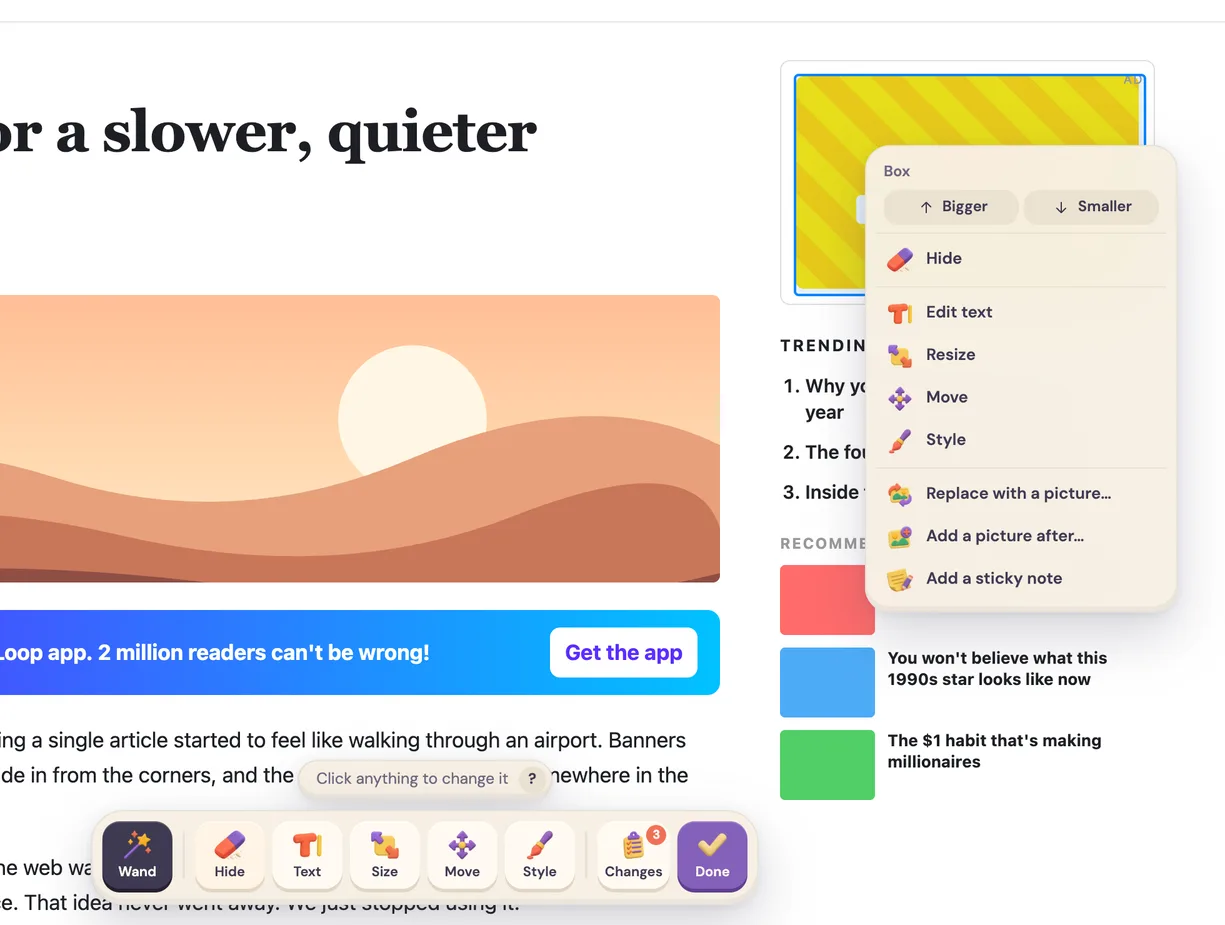
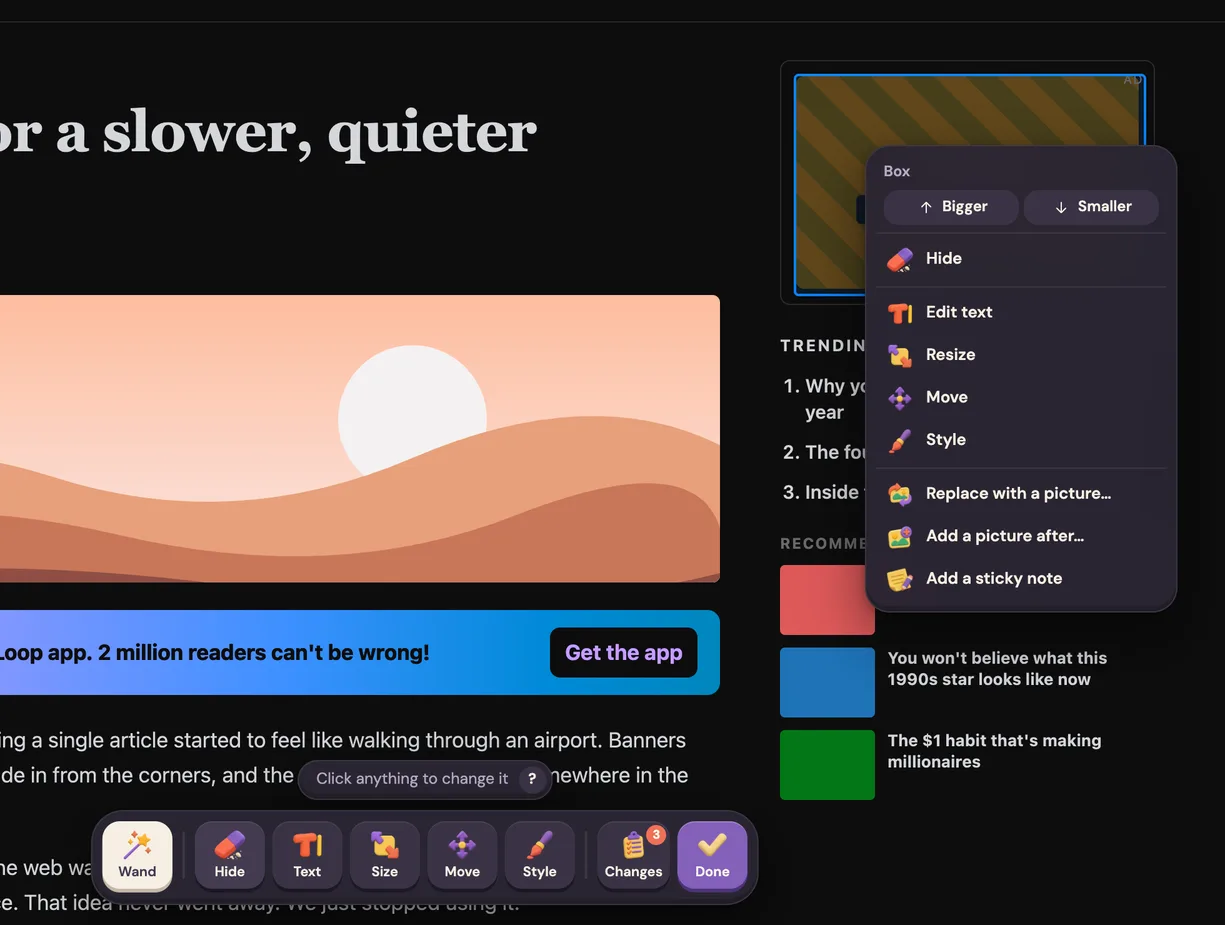
- Alt-click (⌥-click on Mac) to hide all like it. (A plain click hides just that one. On the Edit page's default Wand tool, click it and choose Hide all like this from the menu.) This matters on YouTube: it also hides the Shorts shelves YouTube loads as you scroll, not just the first one.
- Hide the Shorts tab in the left sidebar the same way.
- Search for something and hide the Shorts row in the results too.
- Press Esc to finish.
That's it. Reload the page, close the browser, come back tomorrow, and Shorts are still gone. Every change shows up in Pagic's Changes list, where you can switch it off for a moment or undo it.
Why "Hide all like this" works better than hiding one shelf
YouTube builds its Home page as you scroll. The first Shorts shelf is there when the page loads, and more appear further down. If you hide one element, only that one is gone.
Hide all like this remembers what kind of thing you hid and keeps hiding matching ones the site adds later, like new posts in a feed. When you point at it, Pagic outlines every match on the page, so you can see what it will hide before you click.
What else people hide on YouTube
Once Shorts are gone, there's usually more you'd rather not see. The usual suspects:
- Recommendations on the Home page, so YouTube opens on your search box, not a feed.
- The "Up next" sidebar on a video page.
- Comments, either hidden or blurred until you point at them (Edit page → Style → Blur until hover).
- End screen cards that cover the last seconds of a video.
- The "Explore" and "Trending" sections in the sidebar.
All of these work the same way: click it, hide it. I wrote a separate guide on hiding YouTube recommendations and comments.
Pagic vs a Shorts blocker extension
There are lots of extensions made only for hiding Shorts, and dedicated ones like Unhook handle YouTube's layout with a list of switches. They're a fine choice if Shorts on YouTube is the only thing you want to change.
| Shorts blocker / Unhook | Pagic | |
|---|---|---|
| Hides Shorts | Yes, with a switch | Yes, with a click on the shelf |
| Hides other YouTube parts | Its own list of switches | Anything you can point at |
| Works on other sites | No | Yes, any site |
| Dark mode, colors, fonts | No | Yes |
| When YouTube redesigns | Waits for the developer's update | You click the new shelf again |
The trade-off is honest: a dedicated blocker is a switch, Pagic is a tool. A switch is simpler. A tool keeps working on the next thing that annoys you, whether that's the LinkedIn feed or a cookie banner on your favorite news site.
Is YouTube a good use of Pagic's free plan?
Yes. Pagic's free plan customizes one site at a time, with every tool, and YouTube is the site most people pick. Pro is for when you want the same treatment on every site at once.
Frequently asked questions
Can I disable YouTube Shorts on desktop without an extension? Not fully. On desktop, the ✕ on a Shorts shelf only shows you fewer Shorts for a while. The 0-minute Shorts feed limit is in YouTube's mobile apps. Will hiding Shorts affect my YouTube account? No. Pagic changes how the page looks in your browser only. Nothing is sent to YouTube, and other devices are unaffected. Do hidden Shorts come back when YouTube adds new ones? Not if you use Hide all like this, which also hides matching shelves YouTube loads later. If YouTube redesigns the page, you may need to hide the new version once. Can I get Shorts back later? Yes. Open Pagic, find the change in the Changes list and switch it off or undo it. Or hold the eye button to peek at the page without Pagic. Does this work in Edge, Brave or Arc? Yes. Pagic works in Chrome and other browsers built on Chromium 127 or newer.